Labelling in the GUI#
Before you can label#
Every label is attributed to a class and to an individual, so two things must exist before the Labels tab wakes up:
A
mapping.txtwith at least one class — the label vocabulary, resolved from the session folder, then the project folder (Label mapping (mapping.txt)).At least one individual. Either the data declares them — a movement-style dataset with an
individualdimension (position (time, individual, keypoint, space)), a pose file, or the session record — or you name them yourself in Settings ▸ Create / edit individuals…. Your own names are stored asextra_individualsingui_settings.yamland are added to whatever the data declares; the dialog shows the data’s names greyed out on top and yours editable below.
How to define individual name#
The individual selector is built from three sources, in this order, and no source hides another:
The dataset’s own individual dimension, in whatever spelling it uses.
The session record (
.ethograph/alignment.nwb, or the.nwbyou opened): any individual it declares that the dataset does not track is added. This is how a session names an animal that was present but not tracked, and how a pynapple folder — whose files carry no individual at all — gets a real name. The record is filled when the media are paired with an individuals list, or afterwards withethograph.io.nwb_alignment.set_individuals(path, ["crow1"]).extra_individualsfromgui_settings.yaml, your own additions.
Until both are there, the Labels tab is greyed out and the label keys refuse to
place anything. The tab says which half is missing and offers the button that
fixes it — Define individuals… or Define labels… (the mapping.txt
editor).
Creating labels#
Once past that, the top row of the Labels tab holds the two choices every label answers: Mode — where a new label’s boundaries come from — and Overlay — how existing labels are drawn (Full plot, Bottom strip, Hidden, or Per plot type… to set them one plot type at a time).
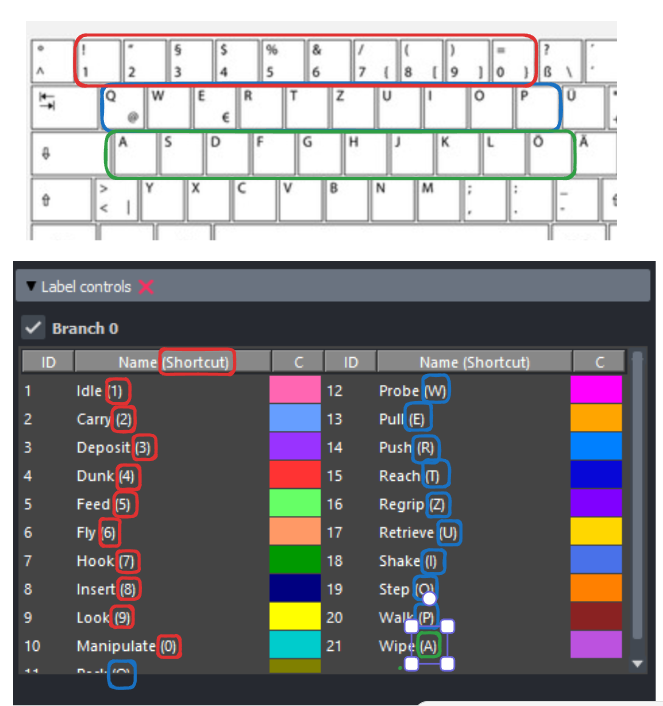
Both modes use the same label keys (see image below), and everything after the time is read — undo, overlap resolution, the label table, the grids, export — is identical.
Graph based labelling#
Press one of the number/letter keys to activate a behavioural label.
Click twice on a plot to define the start and end boundaries of the label. For point events, click only once.
The label is created and displayed with a colour-coded overlay.
Frame by frame labelling#
The classic ethogram-software workflow, for labelling from the video alone:
Navigate to the frame — play with
Space, scrub the timeline, or step withLeft/Right.Press the label’s key. A point event is placed on that frame and you are done.
For a state event the first press marks the start (a dashed anchor appears on the plots). Navigate to the end frame and press the same key again to close it. The playhead stays where you are, ready for the next label. Pressing a different label’s key abandons the half-placed one and starts that class instead.
To move an existing label in this mode, select it, press Ctrl+E, then press its key at the new start and again at the new end (a point event takes one press).
With a video the boundary is the frame on screen, exactly as frame-by-frame curation commits it; without one it is the red time marker.
A panel to see the labels on#
Labels are drawn on the plot panels, so a session with only a video would have nowhere to show them. The Label timeline — an empty time axis carrying only the label overlay — fills that gap: it is the first entry in the ➕ Add panel popup, and with Open a label timeline when no panel is shown ticked (Labels tab, on by default) it opens by itself when a dataset loads with no other panel.
Under the branch tables: Label table… (every trial’s labels as a
spreadsheet), + Add label (the mapping.txt editor — the one place a class
is created) and + Add branch (a second set of labels drawn above the first,
at most three: Full / Top1 / Top2).
Who the labels are about#
The Individual section sits at the top of the right sidebar and is always there — for every panel, the video and the label timeline included, whatever backend the data came from. The names it offers are the ones resolved from your data and Settings ▸ Create / edit individuals… (see Folder layout). It holds two dropdowns:
Individual — the animal performing the behaviour. Switching it switches the labels you see and create.
Receiver — for dyadic interactions (one bird mounting another, one animal grooming another). It is
Noneby default, meaning a solo behaviour.
Note
A new label is placed for the individual of the panel you last clicked —
whether that panel follows the sidebar dropdown or is pinned to another animal
(📌). The bottom bar shows labelling: <individual> so you always know whom
the next label belongs to.
The pair is stored per label in the TSV’s individual and individual_rec
columns — see the column reference.
Playing back labels#
Once you’ve created a label, click on it and press v to play the segment.
You can also use Left / Right to navigate individual frames, or right-click
to jump to specific timepoints. Over time you may find this faster than
playing the video.
Editing and deleting labels#
Use the labels widget interface:
Edit: Select a label (Left-click) and press
Ctrl + E. Then click twice to set the new start and end, or once to move a point event. In the at the current frame mode, press the label’s key at the new start and again at the new end instead (once for a point event).Delete: Select a label (Left-click), press
Ctrl + Dto delete.
Changepoint correction#
See Changepoint correction for how label boundaries are snapped to detected changepoints.
Importing / exporting labels#
Labels are imported and exported from the top-bar File menu: Import labels…, Import predictions…, and Export labels… each open their own panel. See Importing labels and Exporting labels for details.